Build next week's staff schedule without chasing availability.
Send one link, collect everyone's answers, build a conflict-aware draft, and publish the finished schedule to every phone.
14-day full-access trial. No credit card required.
Build next week's schedule free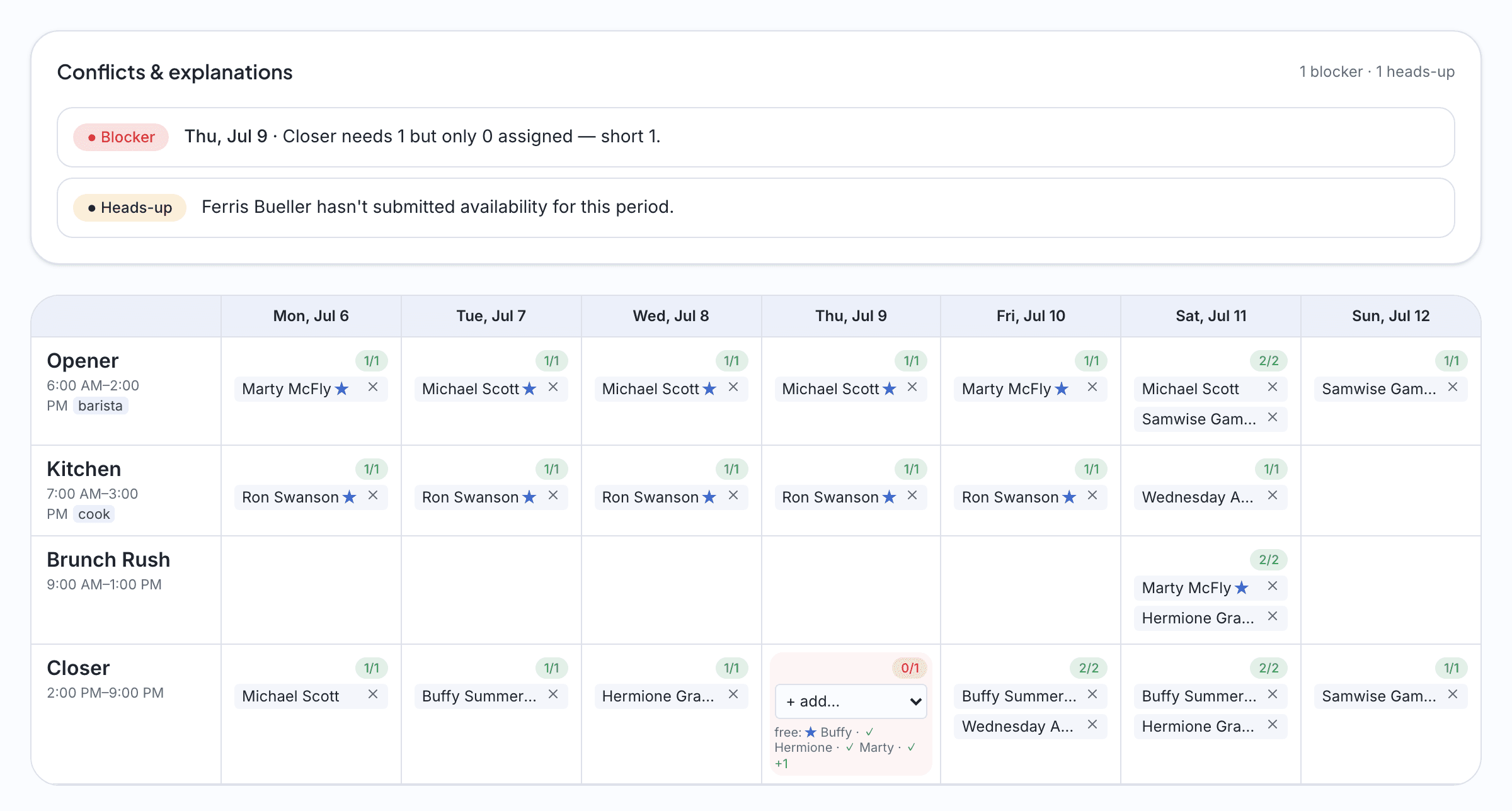
1. Set up the week
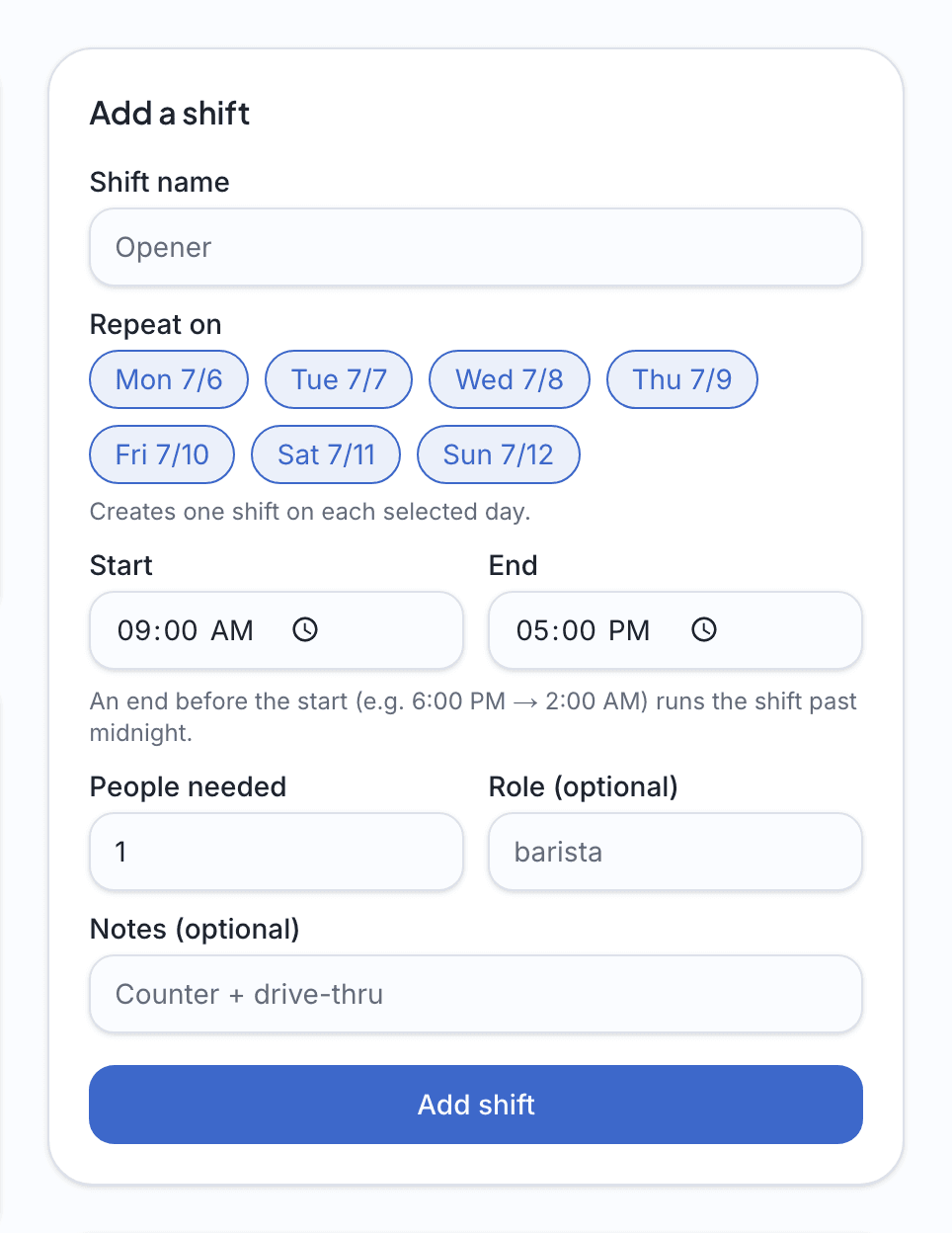
Add the shifts your week actually needs (opens, closes, rushes) and how many people each one takes, in which roles. Most teams save the week as a template once and reuse it, so setup drops to a couple of minutes.
2. Send everyone a link
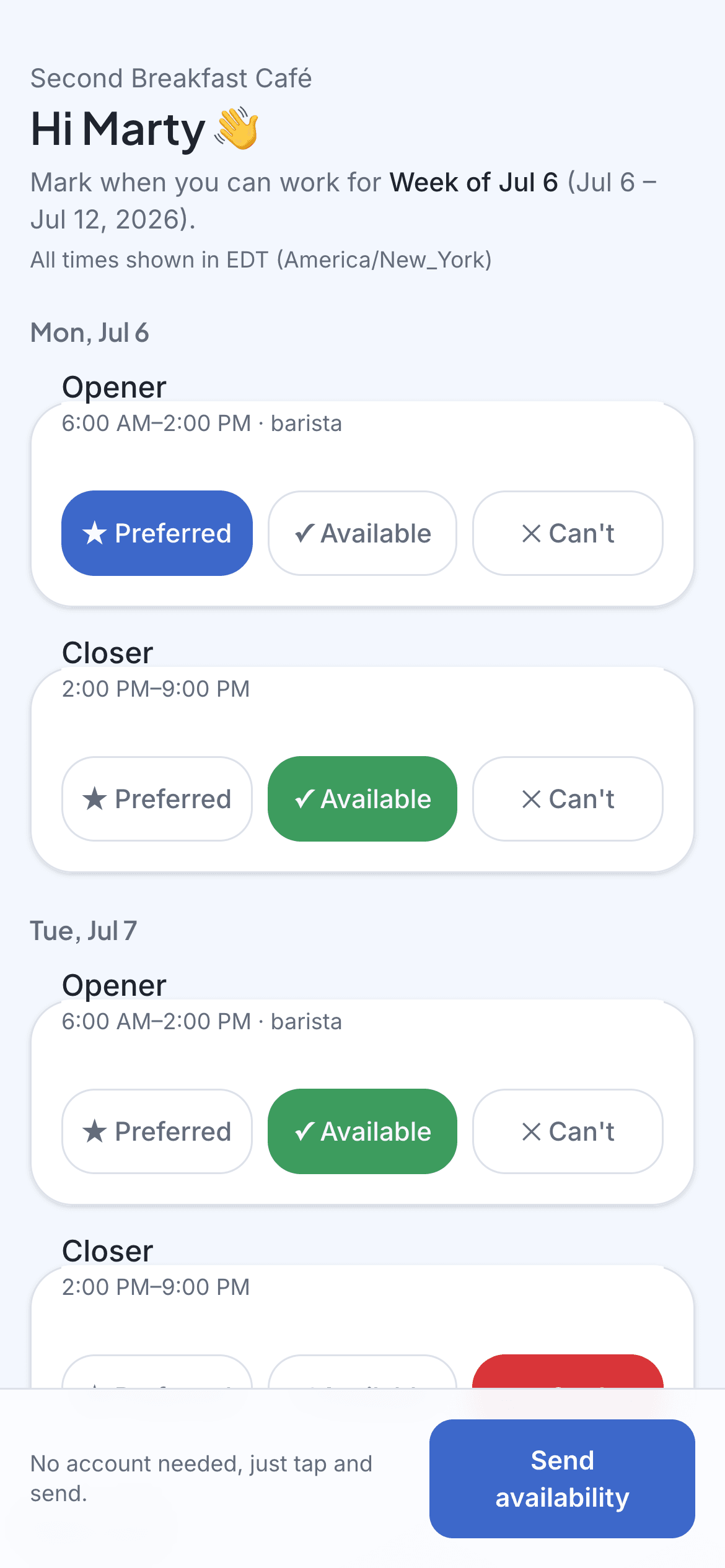
Each employee gets a private link by text or email. There's no app to install and no password to forget. They open the link on their phone and tap each shift: available, preferred, or can't. You watch the responses land in real time while the draft schedule forms underneath them.
Ready to try it with your own team?
14-day full-access trial. No credit card required.
Build next week's schedule free3. Draft, with the why
One click and Schedule's Up fills the week from real availability against the coverage you asked for. More importantly, it shows its work. Every conflict is listed in plain language: who'd be double-booked, which shift is understaffed, whose hours are past their cap.
4. Publish it your way
When the draft looks right, publish. Every employee gets their own schedule link by SMS or email, and you can print the week for the back wall or export it as an .ics file for any calendar app. If the week changes later, republish. The links always show the current schedule.
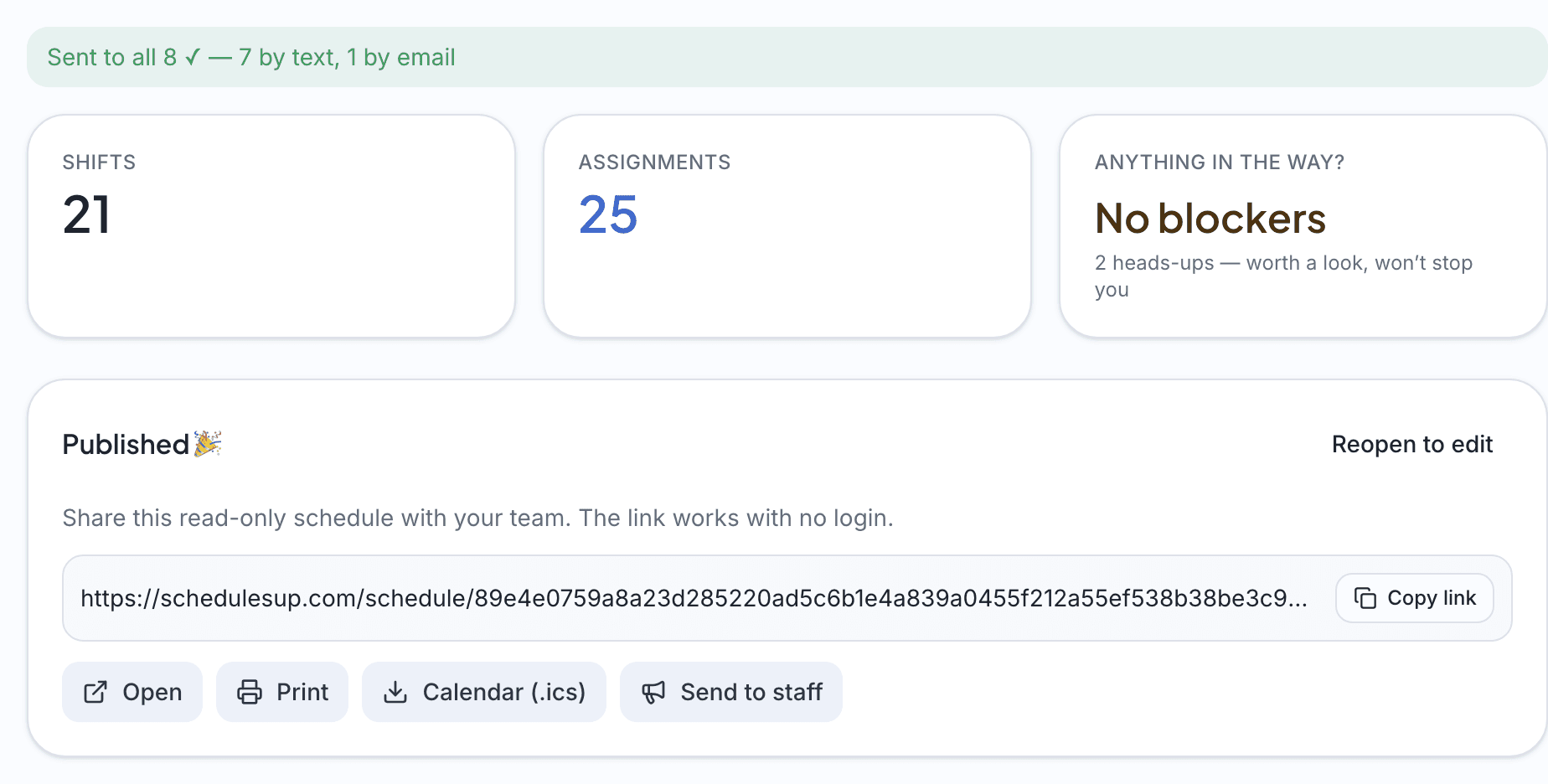
These are real screenshots of Second Breakfast Café, our demo shop staffed entirely by fictional employees. Ferris still hasn't sent his availability.
The finished schedule goes out as:
Curious how it plays out for a team like yours? See restaurants, cafés & bars, retail shops, or salons, spas & fitness studios.
See it with your own shifts.
Build next week's schedule free14-day full-access trial. No credit card required.
Add a payment method at any point during the trial to continue after day 14. Without a payment method, your workspace becomes read-only at day 14. Your data is preserved for 30 days so you can reactivate.